Overview
This guide is for providers who want to understand how they get paid on HirePanther. By the end you’ll know how money flows from customer to you, how to set up your payout details, when payouts arrive, what fees are deducted, and where to download invoices and receipts for your records.
How money flows
When a customer books your service, they pay HirePanther at checkout using a card, online payment, or their wallet balance. You don’t collect the payment yourself.
Once a booking is completed, the amount is added to your earnings, and you receive a payout to the bank account you’ve saved. In short: a payment is what a customer pays, and a payout is what you receive.
Set up your payout details
1. Complete KYC verification first
KYC verification (as an individual or an organization) unlocks payouts. You can’t receive earnings until you’re verified, so complete it as early as possible. See “Setting up your business profile” for the steps.
2. Open Payments
From your dashboard, open Payments. This is where you manage payouts, invoices, and your transaction history.
3. Add your payout account
Enter the bank account details where you want your earnings sent, then save. Keep these details accurate and up to date — outdated banking information is the most common cause of delayed payouts.
![The payout details screen with bank account fields and your KYC verification status]
The payout schedule
Earnings come from completed bookings. HirePanther pays out on a regular schedule, and each payout is processed to your saved payout account within a few business days after it’s generated.
Your payout history shows the status of every payout, so you always know what’s pending and what’s been sent. If a customer requests a refund or you cancel a booking, the related amount is adjusted before it’s paid out.
Fees
HirePanther deducts a service fee from each completed booking — a percentage of the booking total — plus any applicable payment processing fees. The exact rate depends on your membership plan.
Fees are never a surprise: each booking shows the fee deducted, and your payout breakdown lists the total fees before you receive funds. Your invoices and receipts itemize them too, so you always know what you’re being paid and why.
Invoices and receipts
Every completed booking generates a transaction record you can download.
- Open Payments and go to Invoices & Receipts.
- Find the booking or payout you need.
- Select Download to save a copy as a PDF.
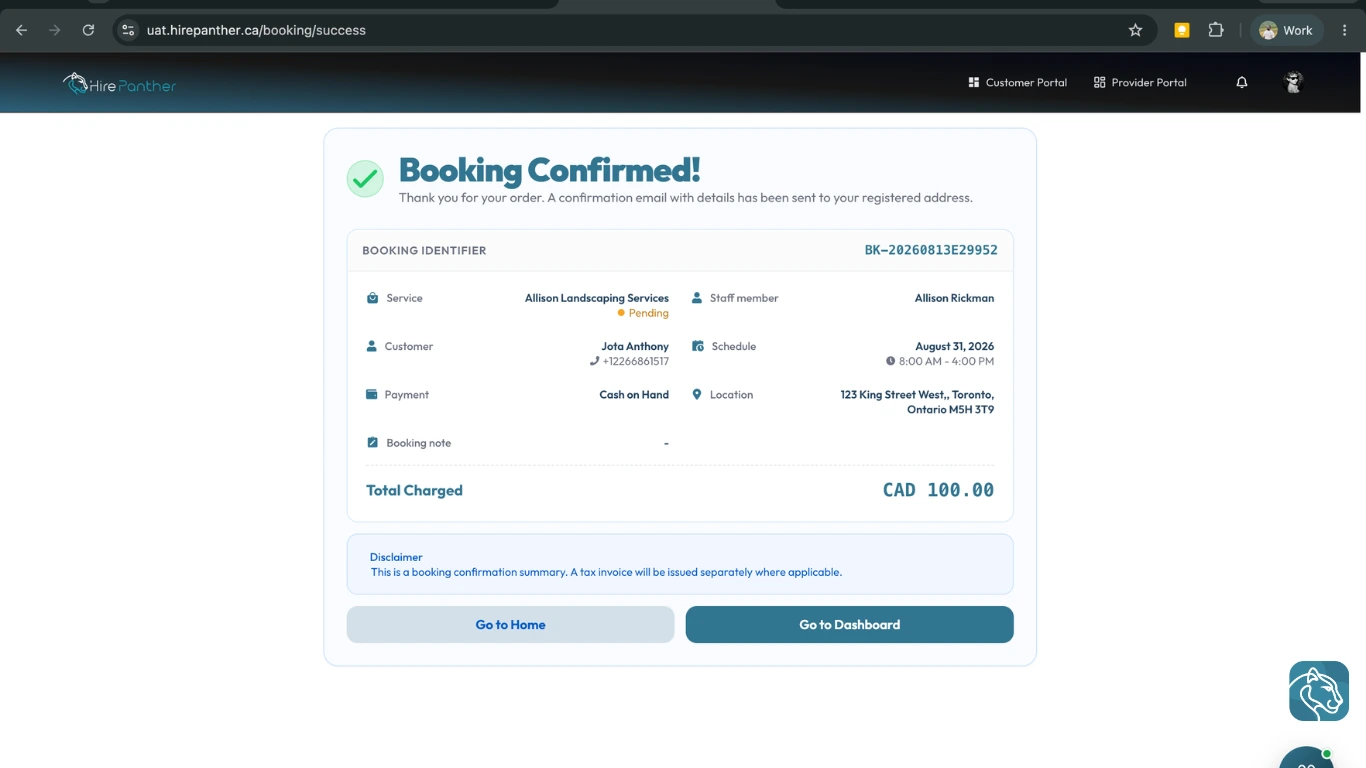
Each record shows the service, package, any add-ons, the fees deducted, the payout total, the booking reference, and the date. They’re handy for bookkeeping, expense claims, and tax season.
Track your earnings and reconcile
Your earnings dashboard shows what you’ve earned over a period, broken down by booking and by service. Use it together with your Bookings list to reconcile:
- Total up the completed bookings for a period.
- Subtract any refunds and the fees shown on each booking.
- Compare the result with the payouts in your history.
If the numbers line up, your payouts are on track. If something doesn’t match, a fee, a refund, or a payout still in processing is usually the reason.
Worked example
Priya runs a one-person cleaning business in Toronto. One customer, a downtown office, books her every Tuesday for a $160 clean — four bookings in a month, for $640 in gross earnings.
She completes her KYC verification when she sets up her account, so her payouts were never blocked. Each week the office pays at checkout, and Priya’s earnings accumulate. At the end of the month, HirePanther pays out her completed bookings in a single payout. In this example, after the service fee and processing fees shown in the payout breakdown (about $64 in total), she receives around $576.
Before tax season, Priya opens Invoices & Receipts, filters the month, and downloads the records for all four cleanings plus the payout summary. She then reconciles: four bookings at $160 each equal $640, minus $64 in fees, which matches the single payout in her history. Her bookkeeping is done in minutes.
Common issues
- A payout is delayed. Confirm KYC verification is complete and your payout details are current. Outdated bank information is the usual culprit.
- The payout amount looks wrong. Check the related bookings for refunds and fees. If it still doesn’t add up, open a support ticket with the booking reference.
- You can’t find an invoice. Receipts appear once a booking is completed. Check the date range in Invoices & Receipts and try a wider filter.
- You changed bank accounts. Update your payout details before the next payout, or funds will go to the old account.
- A customer paid cash. That payment is settled directly with the customer and isn’t included in your HirePanther payout — keep your own record of it.
Related
- Getting started with the Provider Portal
- Managing bookings
- Setting up your business profile
- Earnings, payouts & payout settings
Was this helpful?
Thanks for your feedback!