Overview
Bookings are how customers turn interest into appointments on your calendar. This guide walks you through reviewing incoming requests, accepting or declining them, rescheduling and cancelling confirmed bookings, and completing finished work — plus adding a manual booking for phone or walk-in requests.
Review incoming booking requests
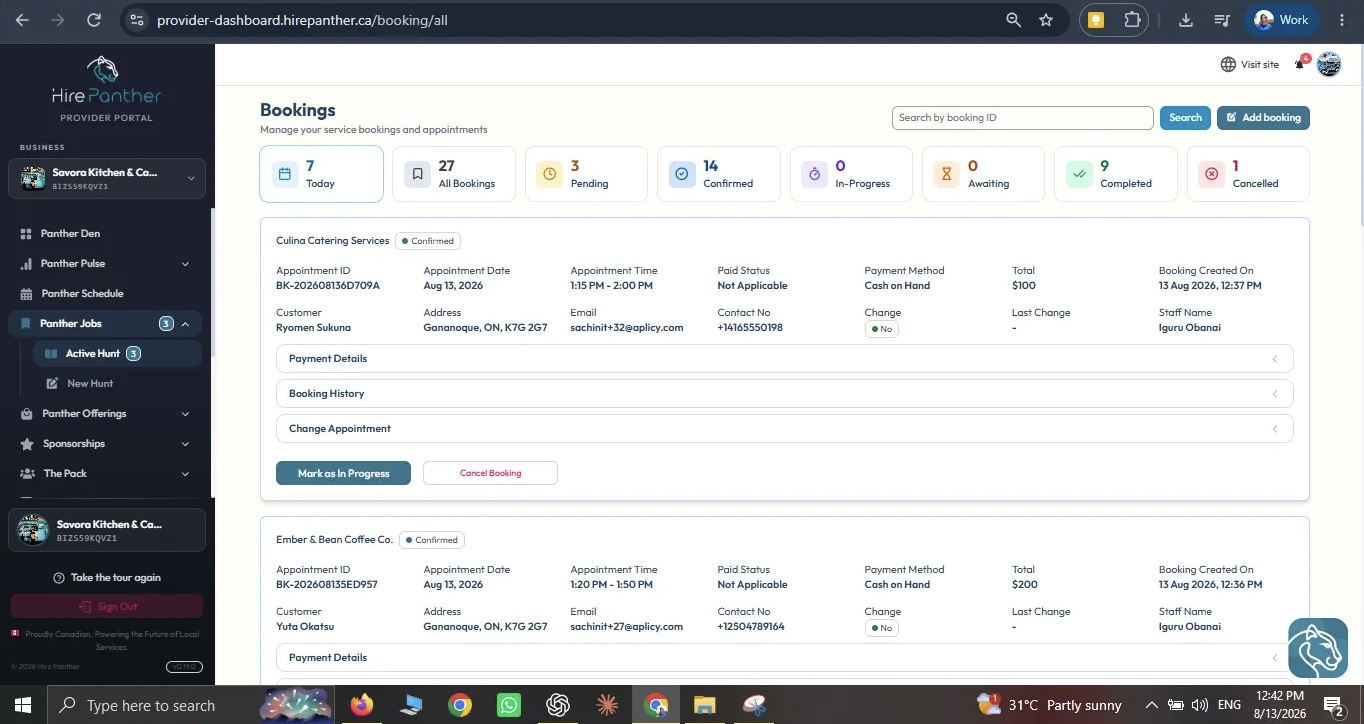
When a customer requests a booking, it appears in Bookings in your Provider Portal. Open the request to review the full details before you respond:
- Customer — who is booking, with a link to their profile.
- Service and appointment — the service, date, and time they asked for.
- Payment — the price and whether payment is captured or confirmed.
- Status — where the booking sits in the workflow, for example Requested or Confirmed.
Each request also shows any message the customer added. If something is unclear, reply in Messages first so you can confirm the details before accepting.
Accept or decline a request
1. Accept
Select Accept to confirm the appointment. The time is blocked on your Calendar, and the customer is notified right away.
2. Decline
Select Decline to free the slot so the customer can request another time or book a different provider. Add a short note when you decline — for example, “This location is outside my service area” — so the customer understands why.
Reschedule a confirmed booking
Plans change, and rescheduling keeps your calendar accurate when they do.
- Open the booking in Bookings.
- Select Reschedule.
- Pick a new date and time that works for you.
- Confirm the change.
The customer receives an updated request and can confirm the new time. If they suggested the change first, agree on the new slot in Messages before you reschedule so you aren’t both guessing.
Cancel a booking
If you can’t deliver a confirmed booking, cancel it rather than leaving the customer waiting.
- Open the booking in Bookings.
- Select Cancel.
- Choose a reason and confirm.
Cancelling frees the time on your calendar so it can be booked again. Frequent cancellations can affect your reliability, so only cancel when you really have to.
Complete a booking
When the work is done, mark the booking complete:
- Open the booking in Bookings.
- Select Complete.
- Add any notes you want to keep for reference.
Completing a booking records the earnings that flow to your payouts and keeps your analytics accurate. Completed bookings also open the door to reviews, so finish every job in the portal.
Create a manual booking
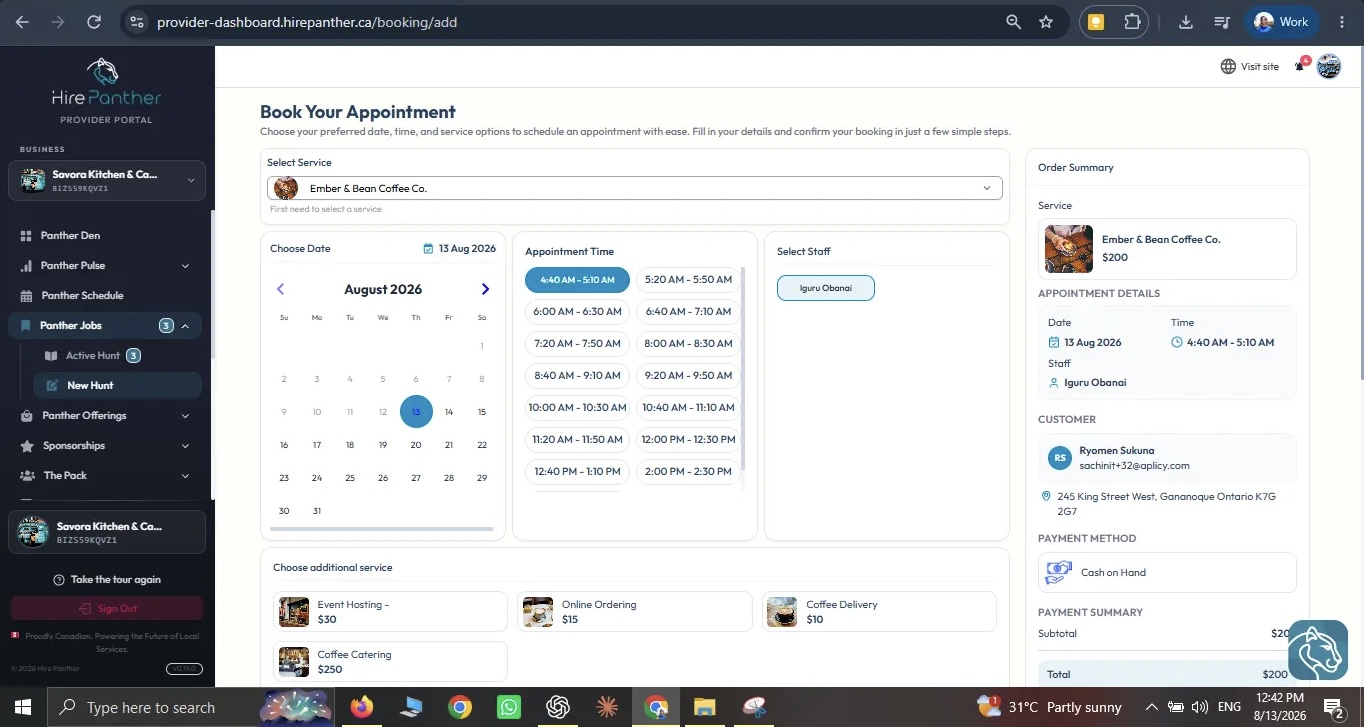
Not every booking starts online. For a phone call or a walk-in, add the appointment manually so your schedule stays complete.
- Open Calendar & Availability.
- Select Add booking.
- Enter the customer’s details, the service, and the appointment date and time.
- Save.
A manual booking appears on your calendar just like any other booking, keeps your schedule accurate, and counts toward your analytics.
Booking status workflow
Every booking moves through a small set of statuses:
- Requested — a customer asked to book and you haven’t responded yet.
- Confirmed — you accepted, and the time is locked on your calendar.
- Completed — the work is done and your earnings are recorded.
- Cancelled — the booking was cancelled by you or the customer.
From Confirmed, a booking can be Completed, Cancelled, or Rescheduled to a new time. Keeping each booking in the right status keeps your calendar, analytics, and payouts accurate.
Worked example
Marcus runs a plumbing service in Toronto. He opens his morning to three same-day requests.
Two requests fit him perfectly: a kitchen sink installation and a toilet repair, both inside his service area and both at times he’s free. He selects Accept on each, and the times lock into his calendar.
The third request is for a location well outside his service area. Marcus can’t deliver it, so he selects Decline and adds a note explaining that the address is outside his service area. The slot stays open and the customer can find another provider.
Later, one of the accepted customers asks to move the sink installation from 2 pm to 4 pm. Marcus opens the booking, selects Reschedule, picks the new time, and confirms. By the end of the day he has two completed bookings recorded, and his calendar and earnings reflect exactly what happened.
Common issues
- You missed a request — Turn on booking notifications so new requests reach you right away, and check Bookings regularly during your working hours.
- You can’t take a booking — Decline it with a short note. Leaving a request sitting unanswered keeps the customer waiting and can hurt your reliability.
- The customer wants a different time — Agree on the new slot in Messages, then reschedule the booking so your calendar stays correct.
- A booking won’t complete — Make sure the status is Confirmed first. You can only complete a confirmed booking.
- You completed a booking by mistake — Contact support through a support ticket and a team member can help correct the status.
Related
- Managing your schedule and availability
- Notifications and account settings
- Getting paid: payments and payouts
Was this helpful?
Thanks for your feedback!