Overview
This guide is for home and professional-services providers who want to run their business on HirePanther. By the end you’ll know how to reach the Provider Portal, create and verify your provider account, and find your way around the workspace so you can start taking bookings.
Reach the Provider Portal
The Provider Portal is where you manage your business on HirePanther — your services, schedule, bookings, staff, and payouts.
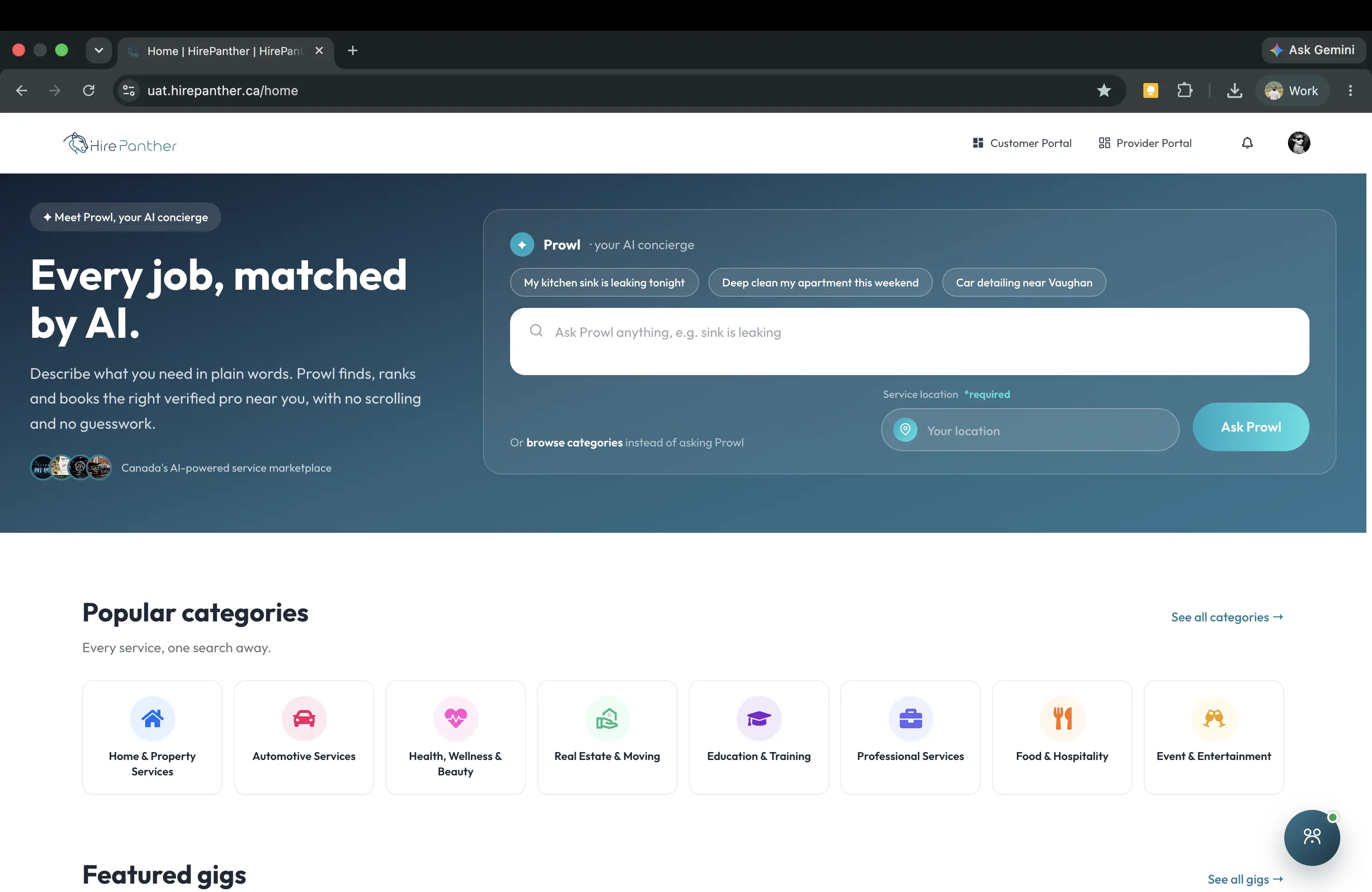
- Open hirepanther.ca in your browser.
- Click Provider Portal in the header.
- On the login page, choose Sign up if you don’t have an account yet, or sign in if you do.
Create your provider account
1. Start signing up
On the Provider Portal login page, select Sign up and choose Provider as your account type.
2. Enter your business details
Add your name, business email, and a secure password. A business email is best — verification tends to be faster, and booking updates and payout messages land in the same place you run your work.
3. Submit the form
Agree to the Terms of Service and Privacy Policy, then submit.
![The provider sign-up form for a business email and password]
Verify your email or phone
After signing up, HirePanther sends a one-time code to the email or phone you provided.
- Open the message and copy the code.
- Enter it on the verification screen.
- If the code doesn’t arrive within a few minutes, choose Resend code and check your spam or junk folder.
Log in for the first time
Once your account is verified, return to the Provider Portal login page and sign in with your email or phone and password. You’ll land on your Dashboard.
Tour of the workspace
The sidebar on the left of your workspace takes you to every part of the portal:
- Dashboard — your revenue, active bookings, upcoming appointments, and rating at a glance.
- Calendar — your schedule and availability, including holidays and blocked dates.
- Bookings — incoming requests, accepted and completed bookings, plus manual booking for phone or walk-in requests.
- Services — build and publish your service listings, set pricing, and manage add-ons.
- Staff — add team members and assign them to services.
- Service Boost — pay for extra visibility for your listings.
- Payments — payouts, invoices, and your transaction history.
- Reviews — read customer reviews and respond.
- Notifications — alerts for bookings, messages, and other activity.
- Account & Billing — your business profile, membership plan, and billing details.
- Support — help articles and support tickets.
![The Provider Portal workspace with the sidebar navigation and dashboard]
Complete KYC early
Complete KYC verification (individual or organization) as soon as you can. It unlocks full access to provider features and gates payouts — you can’t receive earnings until you’re verified.
Worked example
Marcus runs a plumbing business in Toronto. He opens hirepanther.ca, clicks Provider Portal in the header, and selects Sign up. He picks Provider, enters his business email (marcus@torontopipeworks.ca), and sets a password.
A one-time code arrives in his inbox within a minute. He enters it, and on his first login he lands on the Dashboard, where he can see his revenue, upcoming bookings, and rating. Before adding his first service, he completes KYC verification so his payouts are ready when his first customer books.
Common issues
- The verification code doesn’t arrive. Wait a minute, choose Resend code, and check your spam or junk folder. Confirm the email or phone number you entered is correct.
- You already have an account. Choose Log in instead of signing up again. If you forgot your password, use the reset link on the login page.
- Verification keeps failing for your business email. Check that you can receive mail at that address, or complete individual verification instead.
- You can’t find the Provider Portal link. It’s in the header of hirepanther.ca. On a mobile screen, open the menu to find it.
Related
- Setting up your business profile
- Creating services and setting pricing
- Managing your schedule and availability
- Getting paid: payments and payouts
Was this helpful?
Thanks for your feedback!