Overview
Your services are what customers browse, compare, and book. The Provider Portal guides you through each new listing in six steps — Service Details, Add-ons, Availability, Service Area, FAQs & SEO, and Review & Publish. By the end you’ll have a complete service with clear pricing, ready for customers to book.
The six-step creation flow
When you choose Add Service, you’ll move through the steps in order. You can save a draft at any point and finish later.
- Service Details — the basics: title, category, price, description, staff, and photos.
- Add-ons — optional extras customers can add at booking.
- Availability — working days, hours, and appointment duration.
- Service Area — where you’re willing to work.
- FAQs & SEO — common questions and search keywords.
- Review & Publish — check the preview and go live.
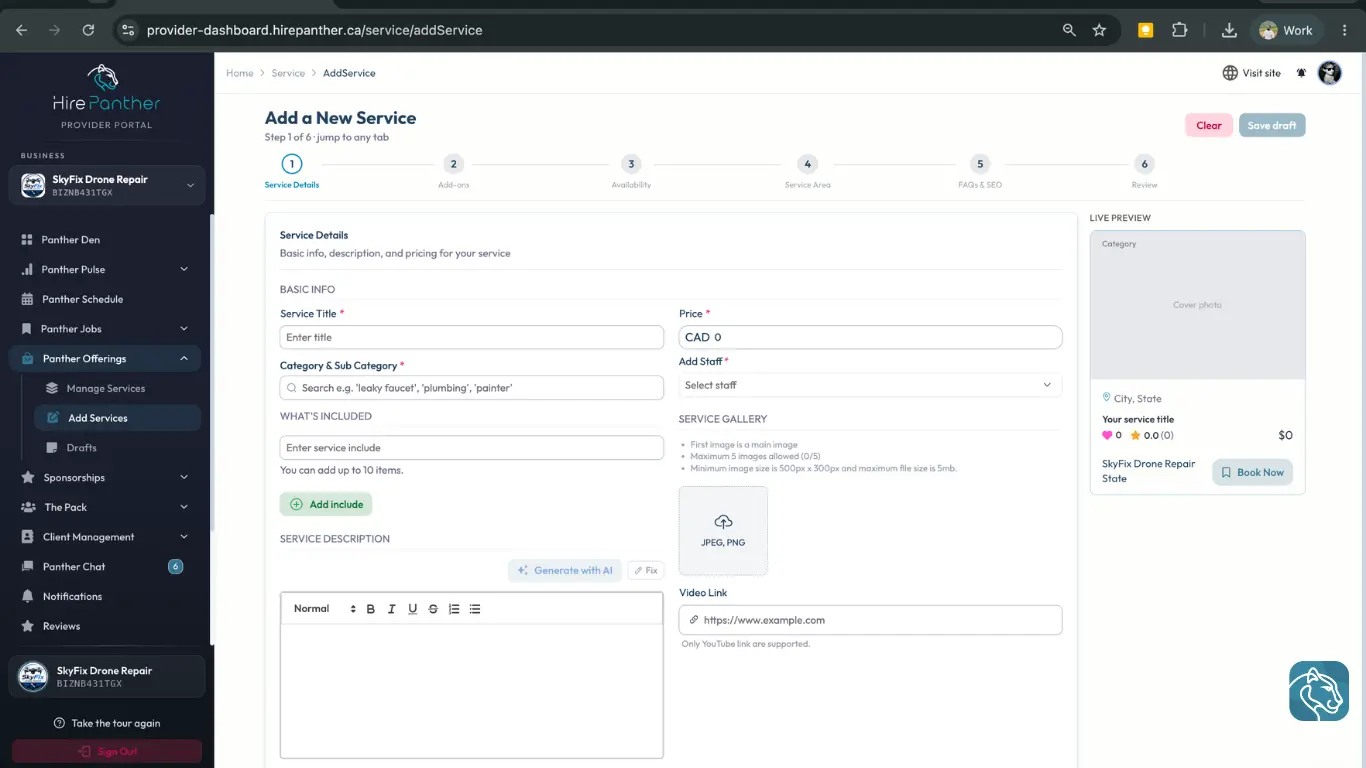
1. Service Details
This first step covers the essentials:
- Title — a clear name customers will recognize, like “Spring clean-up” or “Full-home deep clean.”
- Category — pick the best fit so customers can find you.
- Price — your starting price and pricing model (more below).
- Description — what’s included, what isn’t, and anything the customer should know.
- Staff — assign the staff who deliver this service if you have a team.
- Gallery images — upload clear, well-lit photos that show your work.
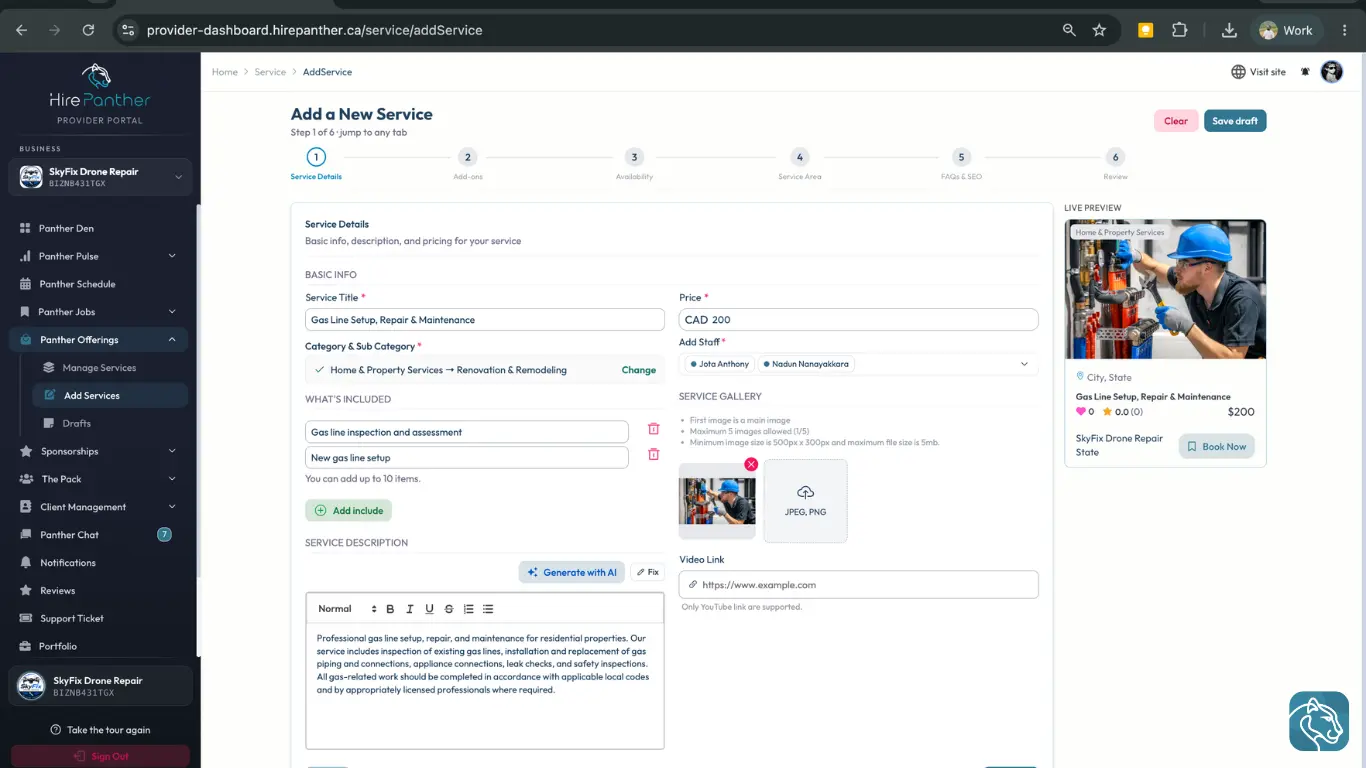
Pricing models
Choose the pricing model that matches how you charge:
- Fixed price — one price for the whole service, such as $120 for a spring clean-up.
- Per-hour — an hourly rate, such as $65/hour for landscaping.
- Duration-driven — the price changes with how long the job runs. Set your appointment duration (for example 30, 60, or 90 minutes) and a price per slot, then customers pick the duration that fits their job.
Whatever model you choose, set realistic CAD prices that cover your time and materials.
Service packages and add-ons
2. Add-ons
Add-ons are optional extras a customer can add at booking, and each one has its own price. They’re an easy way to increase the value of a booking without creating a new listing. For example, a landscaper might add a gutter clearing add-on at $40, or a cleaning company could add a fridge interior clean at $25.
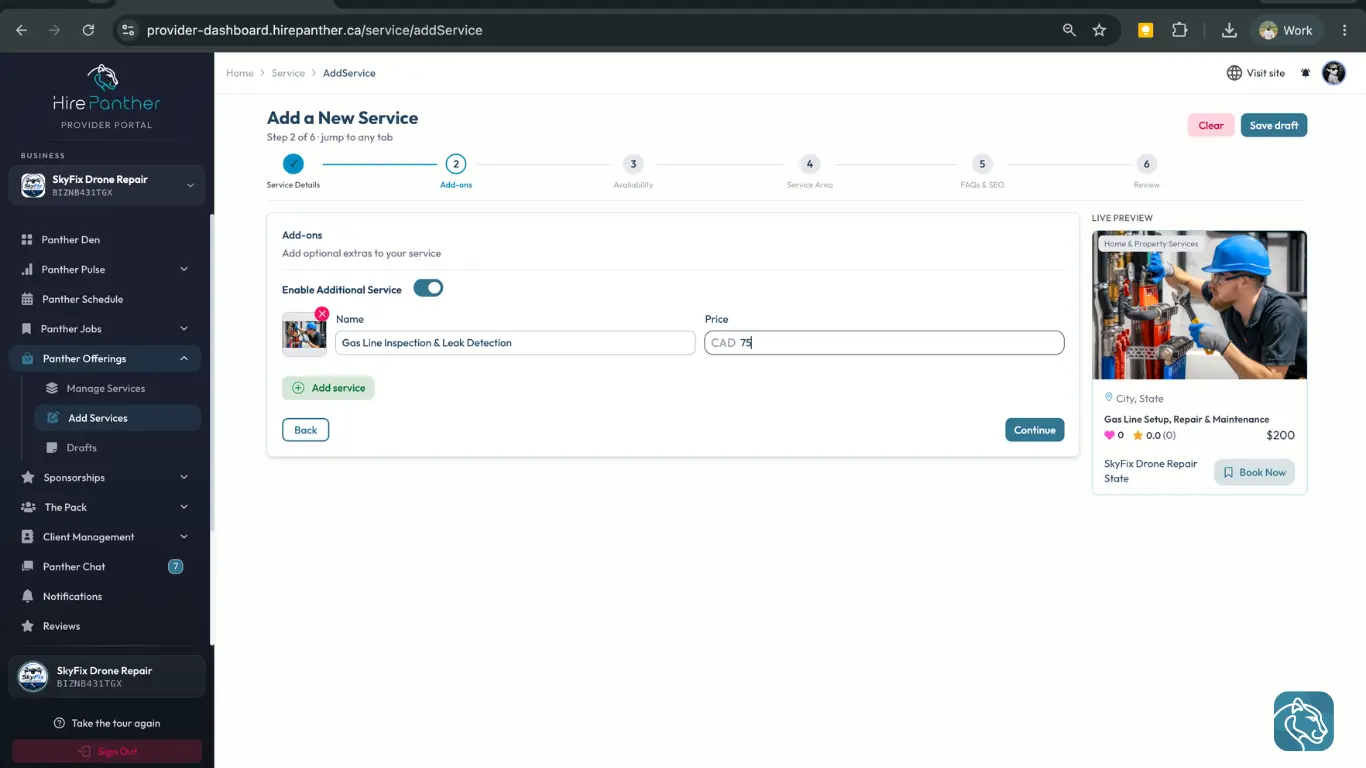
You can also offer your service in tiers — Basic, Standard, and Premium service packages — so customers can pick the level that fits. Each package has its own price and a description of what’s included.
3. Availability
Set the working days and hours customers can book you. Your appointment duration decides how each booking fits into your day. You can adjust your calendar anytime in Calendar & Availability.
4. Service Area
Tell customers where you work. Set your service area so people can check that you cover their location before they book.
5. FAQs & SEO
- FAQs — answer common questions, such as what’s included, how cancellation works, or whether you bring equipment. Good FAQs cut down on back-and-forth messages.
- SEO — add keywords that describe your service, like “gutter cleaning Hamilton,” so you show up in the right searches.
6. Review & Publish
You don’t have to finish in one sitting. Save your work as a draft at any step and return when you’re ready. When you finish the last step, choose Review & Publish to see a preview of the listing the way customers will. Publish it and your service goes live with a Display ID — a short, human-readable identifier you can reference when you talk to support.
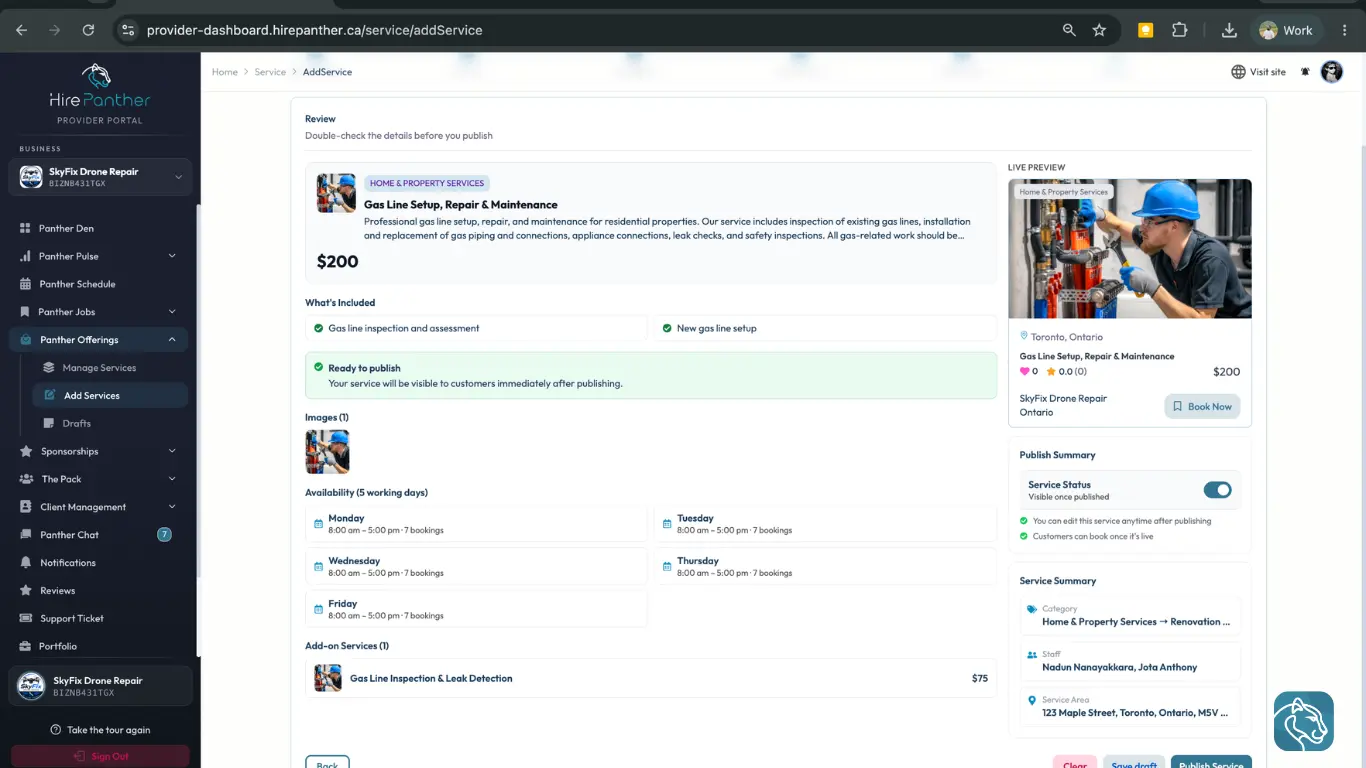
Worked example
Meet Priya, a Hamilton landscaper. She creates a “Spring clean-up” service to capture the spring rush.
- In Service Details, she titles it “Spring clean-up,” picks the Landscaping category, and describes what a clean-up includes: raking, bed weeding, and curb edge trimming.
- She chooses duration-driven pricing with 60-minute appointments at $85.
- She adds service packages: a Standard package at $150 for a typical yard, and a Premium package at $220 that includes hedge trimming.
- She adds a gutter clearing add-on at $40 for customers whose gutters need clearing too.
- She sets her service area to Hamilton and the surrounding suburbs, answers a few FAQs, and adds SEO keywords like “spring clean-up Hamilton.”
- She saves a draft, reviews the preview, and publishes. A few days later, a customer books the Standard package with the gutter add-on — a $190 job Priya wouldn’t have landed without a clear listing.
Common issues
- I can’t finish the listing in one go. Use Save as draft — your service stays under Drafts until you’re ready to publish.
- My price doesn’t match how I charge. Switch the pricing model in Service Details to fixed, per-hour, or duration-driven before you publish.
- Customers ask the same questions over and over. Add those answers to FAQs in step five to cut down on messages.
- I cover a wider area than the default. Expand your service area in step four so nearby customers can find you.
- I need to change a price after publishing. Open the service and edit it — changes apply to new bookings.
Related
- Setting up your business profile
- Managing your schedule and availability
- Boosting a service with Service Boost
- Showing up in search and understanding analytics
Was this helpful?
Thanks for your feedback!