Overview
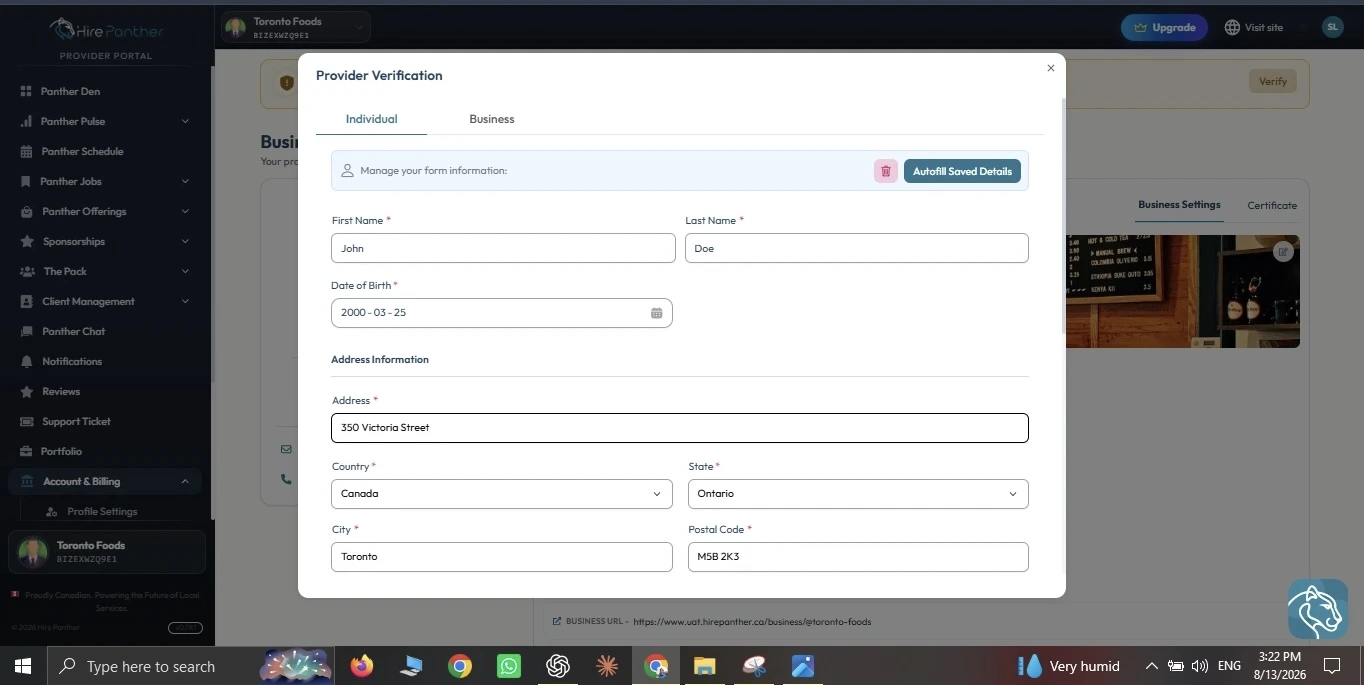
Your business profile is the first thing customers see when they find you on HirePanther. It tells them who you are, what you do, and where you work. In this guide you’ll add your business details, choose your categories, set your service area, add a logo and cover photo, and complete identity verification so customers can find you and trust you.
Add your business details
1. Add your business name and description
- Sign in to the Provider Portal and open your Business Profile.
- Enter your business name. Use the name customers recognize from your website, signage, or flyers.
- Write a description. Tell customers what you do, what makes you different, and who you serve. A few clear sentences work better than a wall of text.
2. Add contact information and social links
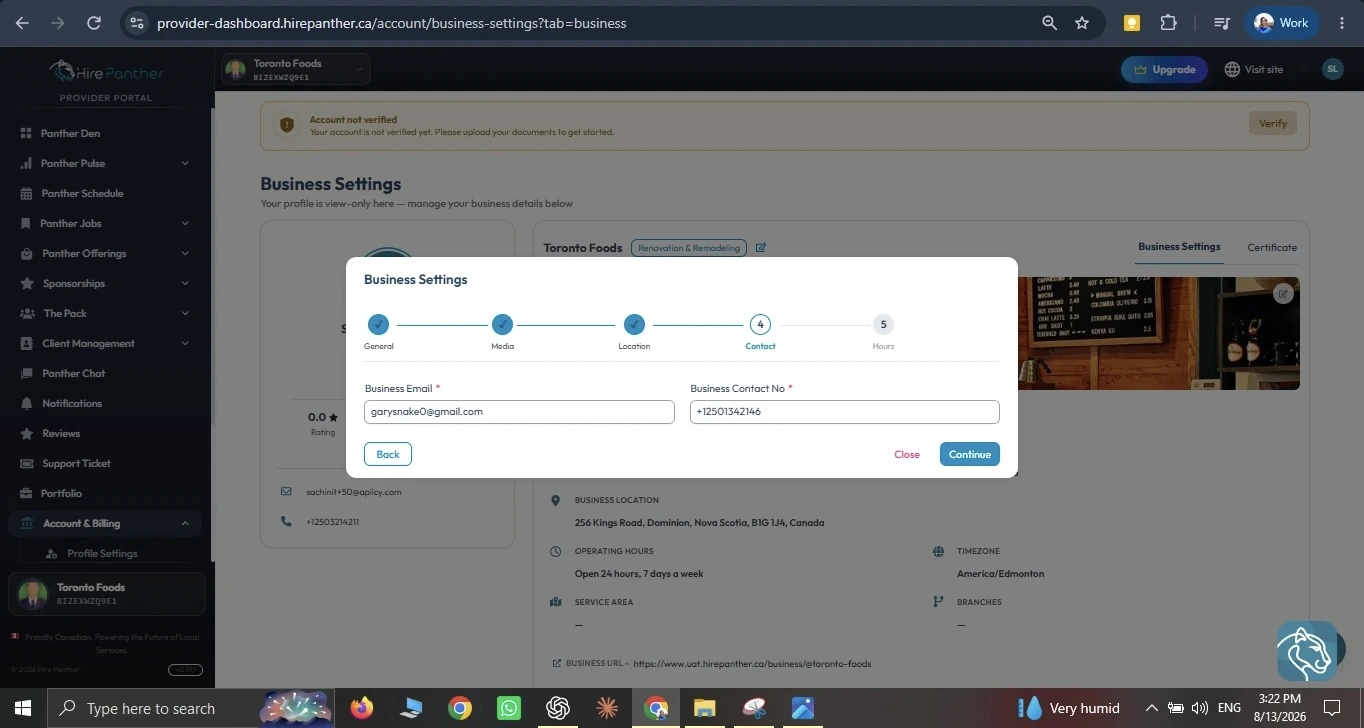
- Add your phone number and email address. Customers may use these to reach you about a booking or an inquiry.
- Add links to your website and social profiles, such as Instagram or Facebook.
- Keep these up to date. If you change your number or move locations, update them here so customers can always reach you.
Choose your categories and set your service area
1. Choose your categories
- In Business Profile, open Categories.
- Pick the categories that describe the work you actually do — for example Home Cleaning, Move-Out Cleaning, or Carpet Cleaning.
- Choose only categories you genuinely offer. Customers search by category, so accurate ones help the right customers find you.
2. Set your service area
- Open Service Area in your business profile.
- Enter the cities or neighborhoods where you’re willing to work.
- You can add more than one area. A Mississauga cleaning company, for instance, might cover Mississauga and Oakville.
Your service area is used to match you with local searches, so keep it realistic. If you list places you can’t actually reach, you’ll get requests you have to turn down.
Add a logo and cover photo
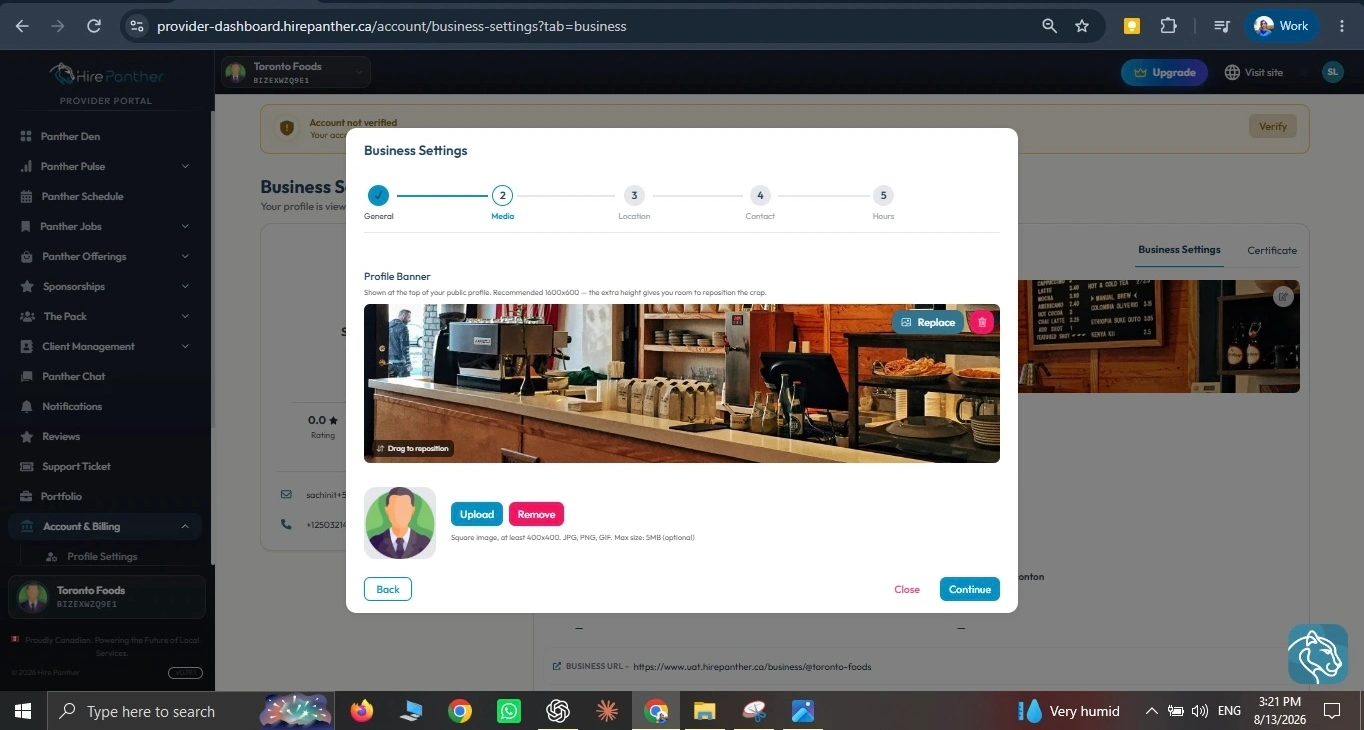
Your logo and cover photo give customers an instant sense of your business.
- Logo — use a square, high-resolution image with your business name or mark. It appears next to your name in search results and at the top of your profile.
- Cover photo — use a wide image that shows your best work, like a freshly cleaned kitchen or a landscaped yard. It’s the first thing people see when they open your profile.
- What works best — real photos of work you’ve done, good lighting, and not too much text. Avoid blurry shots or heavy filters.
Run multiple businesses with the business switcher
If you run more than one business — say a cleaning company and a handyman service — you can add them all to the same account. The business switcher at the top of the Provider Portal lets you move between them in one click. Each business keeps its own profile, services, bookings, and payouts, so nothing gets mixed up.
- Open the business switcher at the top of the Provider Portal.
- Select Add business and complete its profile.
- Switch between businesses anytime from the same menu.
Complete KYC verification
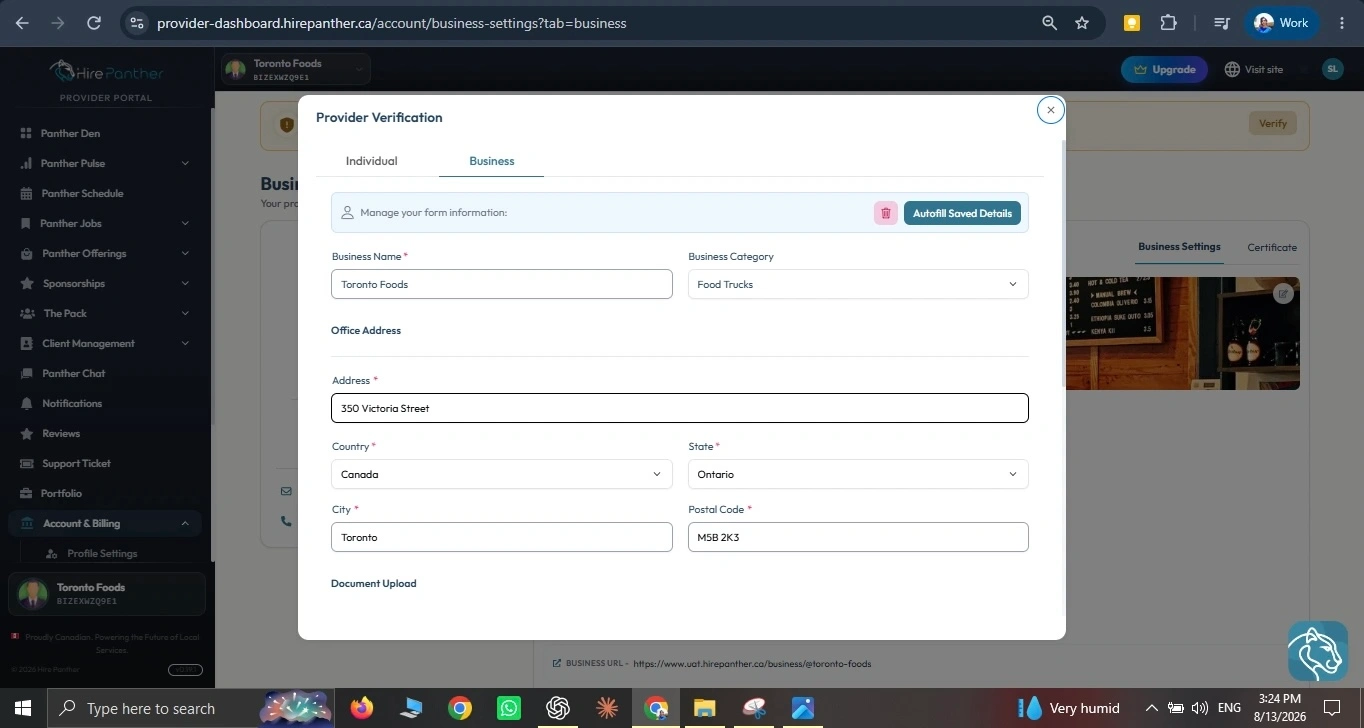
KYC verification confirms that you’re a real person or a real business. It builds customer trust, and it’s required before you can receive payouts.
Choose the option that fits how you run your business:
- Individual verification — for sole proprietors. You’ll verify with your own government-issued ID.
- Organization verification — for incorporated businesses. You’ll provide your business registration documents.
- In your Business Profile, open KYC verification.
- Choose individual or organization.
- Follow the prompts to upload your ID or your business documents.
- Wait for the review. You’ll be notified once you’re verified.
Complete verification early — your payouts stay on hold until it’s done, so the sooner you finish, the sooner you can be paid for your work.
Worked example
Priya owns a cleaning company in Mississauga called Maple Home Cleaning. When she signs in to the Provider Portal, she opens her Business Profile and adds her business name, a description about eco-friendly residential cleaning, her phone number, and her website. She chooses Home Cleaning as her category, then sets her service area to cover Mississauga and Oakville, since she regularly drives to clients in both cities. She uploads her logo and a cover photo of a freshly cleaned kitchen. Because she runs the business as a sole proprietor, she completes KYC verification as an individual. Now when customers in Mississauga or Oakville search for home cleaning, Maple Home Cleaning shows up with a complete, trustworthy profile — and her payouts are ready once she adds her payout details.
Common issues
- My business name is already in use. Try a small variation, or contact support with your legal business name and they can help you claim it.
- Customers aren’t finding me in search. Check your categories and service area. Accurate categories and locations are what match you to the right searches.
- My logo or cover photo looks stretched or cropped. Use a square image for your logo and a wide image for your cover photo. The upload screen shows the recommended size.
- My payouts aren’t coming through. KYC verification must be complete before payouts are enabled. Open KYC verification in your business profile and check your status.
- I run two businesses but only see one. Open the business switcher at the top of the portal and use Add business to bring your other business onto the same account.
Related
- Getting started with the Provider Portal
- Creating services and setting pricing
- Reviews, ratings and building trust
- KYC identity verification for providers
Was this helpful?
Thanks for your feedback!