Overview
Your availability controls the times customers can book, so it’s worth setting up carefully. In this guide you’ll set your regular working hours and days, choose how appointment slots are created, cap how many bookings you take per day, and block holidays so nobody books a day you’re off. When you’re done, your Calendar only shows times you can actually work.
Setting your working hours and days
- Open Calendar & Availability in your Provider Portal.
- Select Working hours and choose the days you work.
- Set a start time and end time for each day. Most providers use the same hours for every working day, but you can customize individual days if you open late on Thursdays or close early on Saturdays.
- Save your changes.
Customers can only book within these hours. If a day has no working hours set, it won’t appear as a bookable day.
![Working hours setup in the Provider Portal, with days of the week and start and end times]
Appointment duration and slots
When you create a service, you set its appointment duration — for example 30 minutes, 1 hour, or 2 hours. Your calendar builds slots from that duration automatically. A 1-hour service gives you one slot every hour within your working hours; a 2-hour service gives you slots every two hours.
This means you don’t set slot length separately. To change how long each slot is, update the service’s appointment duration instead. See “Creating services and setting pricing” for how to edit a service.
Daily caps
A daily cap sets the maximum number of bookings you’ll accept per day. It’s a useful safety valve: once you hit the cap, customers can’t book more appointments that day, even if your working hours still have room.
To set a cap, open Calendar & Availability, find Daily cap (or booking limits), and enter the maximum number of bookings you want per day. Leave it empty for no limit.
Blocking holidays and blocked dates
When you’re closed — a statutory holiday, a family trip, or a day off — block the date so customers can’t book it.
- In Calendar & Availability, select the date or date range you need to block.
- Choose Add holiday (or Block date).
- Add a label if you want (for example “Family Day” or “Offsite”), then save.
The blocked date appears in your calendar and is not bookable. You can remove a blocked date anytime if your plans change.
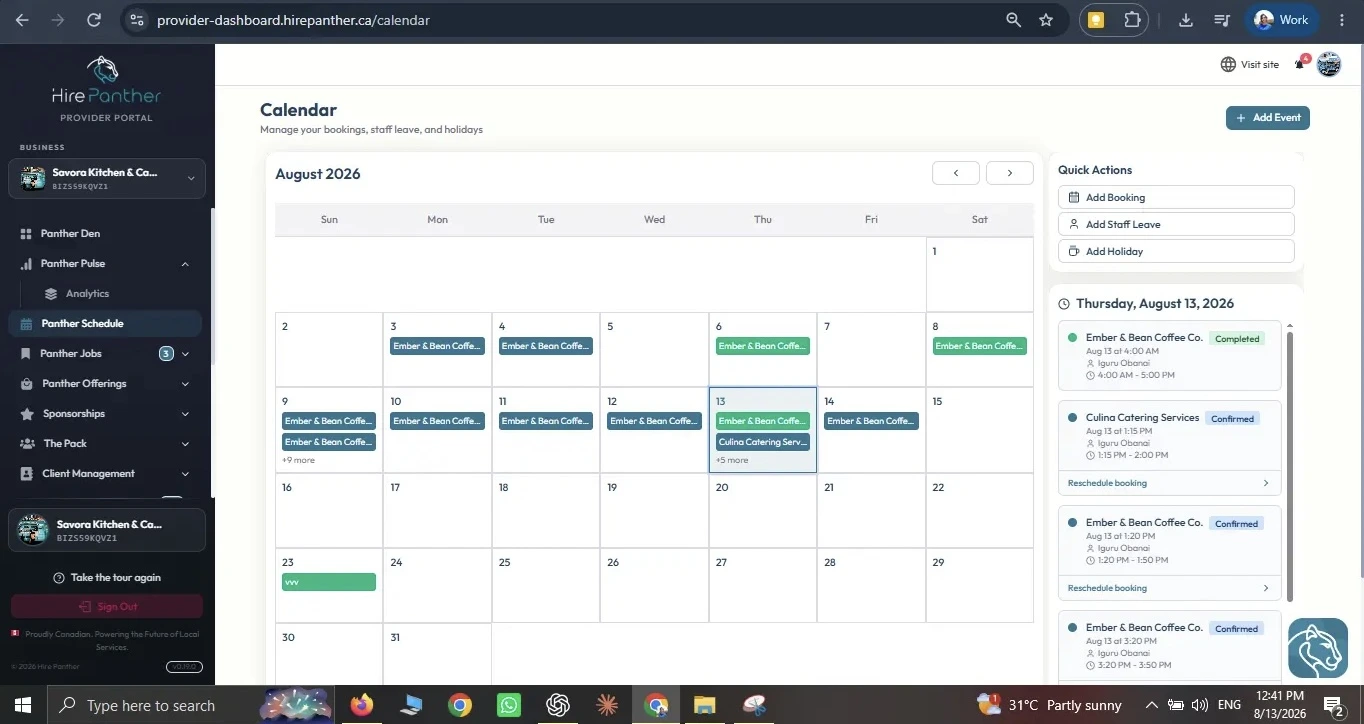
Staff leave
If you have staff, each team member can have their own availability and leave. Staff leave works like a holiday, but for one person: when a staff member is on leave, they’re removed from bookable slots for those dates, while the rest of your team stays available.
You can add leave for a staff member directly from their profile. For the full picture, see “Managing staff”.
Calendar Quick Actions
The Calendar screen has a Quick Actions menu so you can make changes without leaving the page:
- Add booking — create a manual booking for a phone or walk-in request.
- Add staff leave — mark a staff member as unavailable for specific dates.
- Add holiday — block a date for the whole business.
One more thing affects bookable slots: service-level availability. Each service can have its own working hours and booking window, which can be narrower than your general availability. If a service isn’t showing the slots you expect, check that service’s availability settings first.
Worked example
Priya runs a plumbing business in Toronto and wants her calendar set before the spring rush. She works Monday to Friday and prefers to be home by early evening, so she sets working hours of 8:00 AM to 5:00 PM for each of those five days. Her services are mostly 2-hour jobs — a faucet replacement, a toilet install, a water heater check — so she leaves the appointment duration at 2 hours. That gives her three bookable slots a day: 8 AM, 10 AM, and 2 PM (the last one runs 2–4 PM, still inside her working day).
She doesn’t want to overbook herself, so she sets a daily cap of 5 bookings. On a busy day with more than five requests, the calendar simply stops taking new bookings.
Before finalizing, she blocks the first Monday of August — she’s taking the long weekend and doesn’t want a customer to book a day she’s away. Now when a customer searches, they only see Priya’s Monday-to-Friday 2-hour slots, capped at five, and never the holiday.
Common issues
- Customers book times outside my working hours. Check your Working hours in Calendar & Availability, and make sure each service’s availability window isn’t set wider than your general hours.
- Slots look too short or too long. Slot length follows the service’s appointment duration, not a separate setting. Edit the service to change it.
- I’m getting more bookings than I can handle. Set or lower your Daily cap so the calendar stops accepting new bookings once you hit your limit.
- A date I blocked still shows as bookable. Confirm the holiday was saved, and check whether the customer is trying to book a service with its own availability. If staff are involved, check individual staff availability too.
- I don’t see the slot I expected for a service. Open that service’s availability settings — service-level availability can be narrower than your general availability.
Related
Was this helpful?
Thanks for your feedback!