Overview
Staff management lets you add the people who deliver your services, decide what they can do, and keep their schedules accurate. You’ll be able to assign staff to services, set different hours for each person, and block out their time off — so customers always book the right person at the right time.
Add a staff member
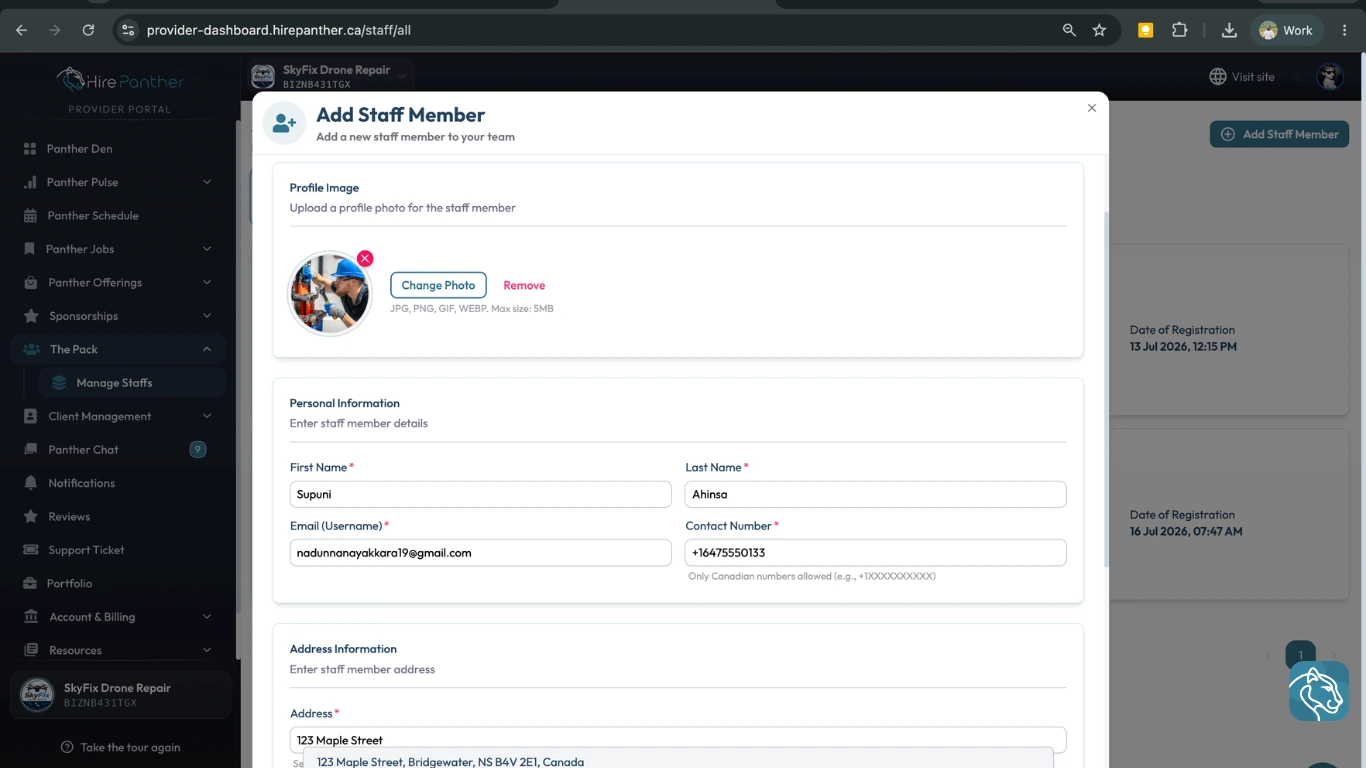
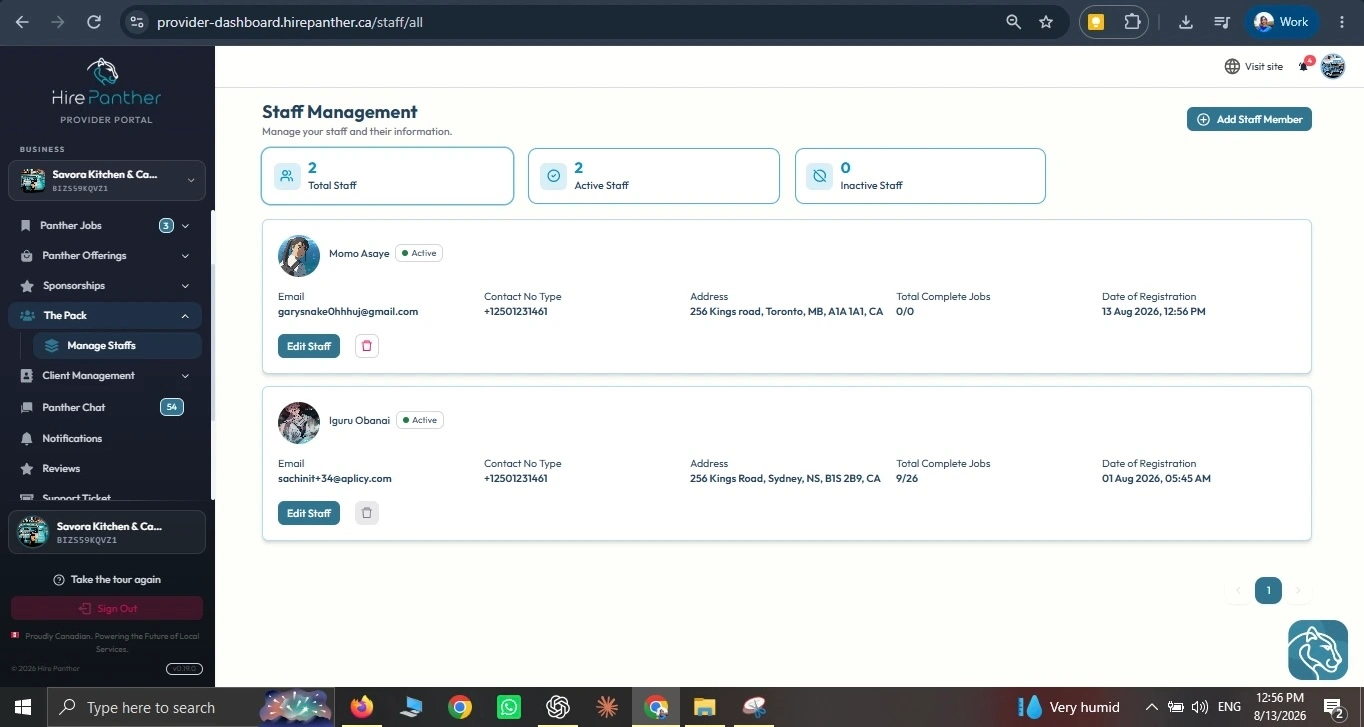
- Open Staff in the Provider Portal sidebar. This is where you manage everyone who delivers your services.
- Select Add staff member.
- Enter the staff member’s first and last name, email, and phone number.
- Choose a role for them. Roles control what the person can see and do in the portal — for example, a cleaner may only need to view their own bookings, while a manager can update services and pricing.
- Save. The new staff member appears in your staff list and gets an invitation to set up their own sign-in.
Give each staff member only the permissions they need for their role. You can change a role at any time.
Assign staff to services
Customers can only book a specific person if that person is assigned to the service. When you create or edit a service, choose which staff members deliver it.
- Open the service you want to update.
- Under Staff, add the staff members who will deliver this service.
- Save.
A service can have more than one staff member, which lets customers pick who they want when they book. If a staff member isn’t assigned to a service, they won’t show up as an option for it.
Set staff-level availability
Staff members can have different working hours from each other. A full-time cleaner might work Monday to Friday, while a part-time cleaner only works weekends.
- Open Calendar & Availability.
- Select the staff member you want to set hours for.
- Set their working days and hours.
- Save.
Each person’s availability works together with your service availability. Customers can only book a slot when both the service and the assigned staff member are available.
Record staff leave
When a staff member is away, block their time so customers can’t book them.
- Open Calendar & Availability.
- Select Add staff leave.
- Choose the staff member, the leave type — for example Annual Leave or Sick Leave — and the start and end dates.
- Add a reason if you like, and save.
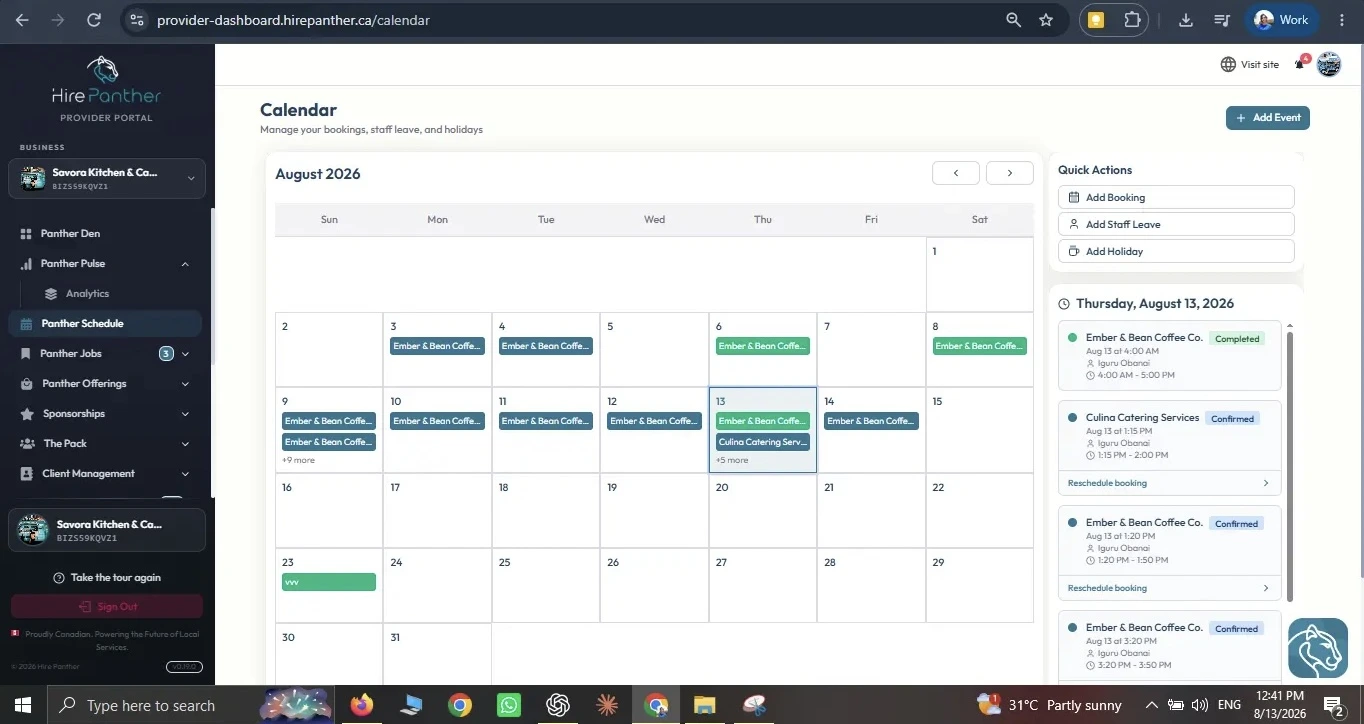
The blocked time shows on your calendar, and that staff member won’t be offered for bookings during the period. You can edit or remove a leave entry later if plans change.
Edit or remove staff
To update a staff member’s details or permissions, open their profile from the staff list and make your changes.
If you remove a staff member, any upcoming bookings assigned to them need a new home. You’ll be prompted to reassign those bookings to another staff member or cancel them before the removal is complete. This protects customers who already have plans with you.
- Reassign moves the booking to someone else who delivers that service — the customer keeps their time.
- Cancel lets the customer know the booking is no longer available and frees them to book again.
Check for upcoming bookings before you remove anyone, and reassign them early so customers aren’t left waiting.
Worked example
Bright & Shine Cleaning is a cleaning company in Mississauga that takes weekly residential cleanings. The owner books a recurring weekly cleaning for a family in Port Credit and wants two cleaners on the schedule so coverage isn’t tied to one person.
The owner adds two cleaners — Maria and James — through Staff, giving Maria a Cleaner role and James a Cleaner role with permission to view their own bookings. Both are assigned to the weekly cleaning service under Staff.
Maria works Tuesday to Saturday, and James works Monday to Friday, so the owner sets each person’s hours in Calendar & Availability. When the family books the recurring weekly cleaning, they can choose either Maria or James, and the booking is assigned to the person they pick.
When James takes a week off in August, the owner records staff leave for those dates. James isn’t offered for bookings that week, and Maria’s slots stay open so the family can still book their cleaning.
Common issues
- A customer can’t pick a specific staff member. The staff member isn’t assigned to that service. Add them under Staff on the service and save.
- A staff member is being offered on days they can’t work. Their availability doesn’t match their real hours. Update their working days and hours in Calendar & Availability.
- Someone is getting booked while on vacation. The leave wasn’t recorded. Add staff leave for the dates so their time is blocked.
- You can’t remove a staff member. They still have upcoming bookings. Reassign or cancel those bookings first, then remove them.
- A new staff member can’t sign in. Check that their email is correct and that they accepted the invitation.
Related
Was this helpful?
Thanks for your feedback!