Overview
Service Boost is a paid feature that moves one of your service listings higher in customer search results. It’s a good option when you have a service that deserves more attention — a new offering, a seasonal favourite, or one that’s booking slower than you’d like. This guide covers choosing a boost package, paying with boost credits, and tracking how your boosted service performs.
What Service Boost does
When a customer searches for a service on HirePanther, the results appear in an order. A boosted service listing shows up higher in that order, so more customers see it before they scroll further down.
The boost applies to a single service of your choice, not your whole profile. That lets you direct extra visibility exactly where it helps most, whether it’s for a two-week window or a whole busy season.
Boost packages
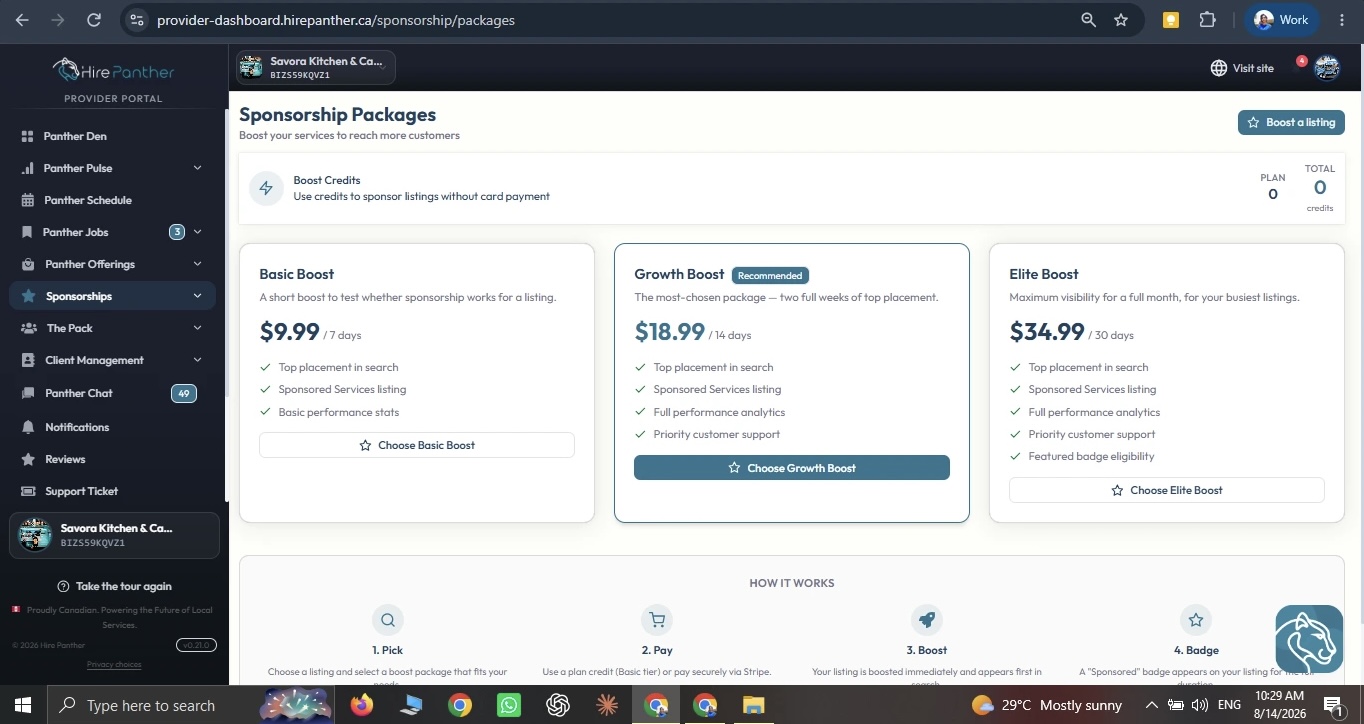
Service Boost offers three boost packages. Each one gives a different level of placement and runs for a different amount of time, so you can match the boost to how much visibility you need.
- Basic Boost — a modest lift in placement for a shorter period. Good for testing whether a small push changes your booking rate.
- Growth Boost — a stronger lift that runs longer. A solid choice for filling a service over the next few weeks.
- Elite Boost — the highest placement and the longest duration. Best for your most important service during peak season.
The price and duration for each package are shown on the packages screen, so you can compare them before you choose.
Boost credits
Some membership plans include boost credits every billing cycle. You can spend these on boosts just like money, and your balance is shown in Plan & Billing and at checkout.
At checkout, any boost credits you have are applied to the cost automatically. The remaining amount is charged to the payment method on your account, so you only pay the difference out of pocket.
Buying and renewing a boost
1. Choose the service to boost
Open Service Boost in the Provider Portal and choose Boost a service. Pick the service listing you want to promote from the list.
2. Choose a boost package
Compare Basic Boost, Growth Boost, and Elite Boost, then select the one that fits your budget and how long you need the lift.
3. Review and check out
Review the service, the package, the cost, and any boost credits being applied. Confirm your payment method, then submit. Your boost starts right away.
4. Set auto-renewal
When you buy a boost, you can turn on Auto-renewal. With it on, the boost renews when it runs out so your placement continues without you having to redo the steps. Leave it off if you want the boost to end when the time is up. You can change this setting anytime from the boost dashboard.
Tracking your results
The Service Boost dashboard shows how your boosted service is performing while the boost is active.
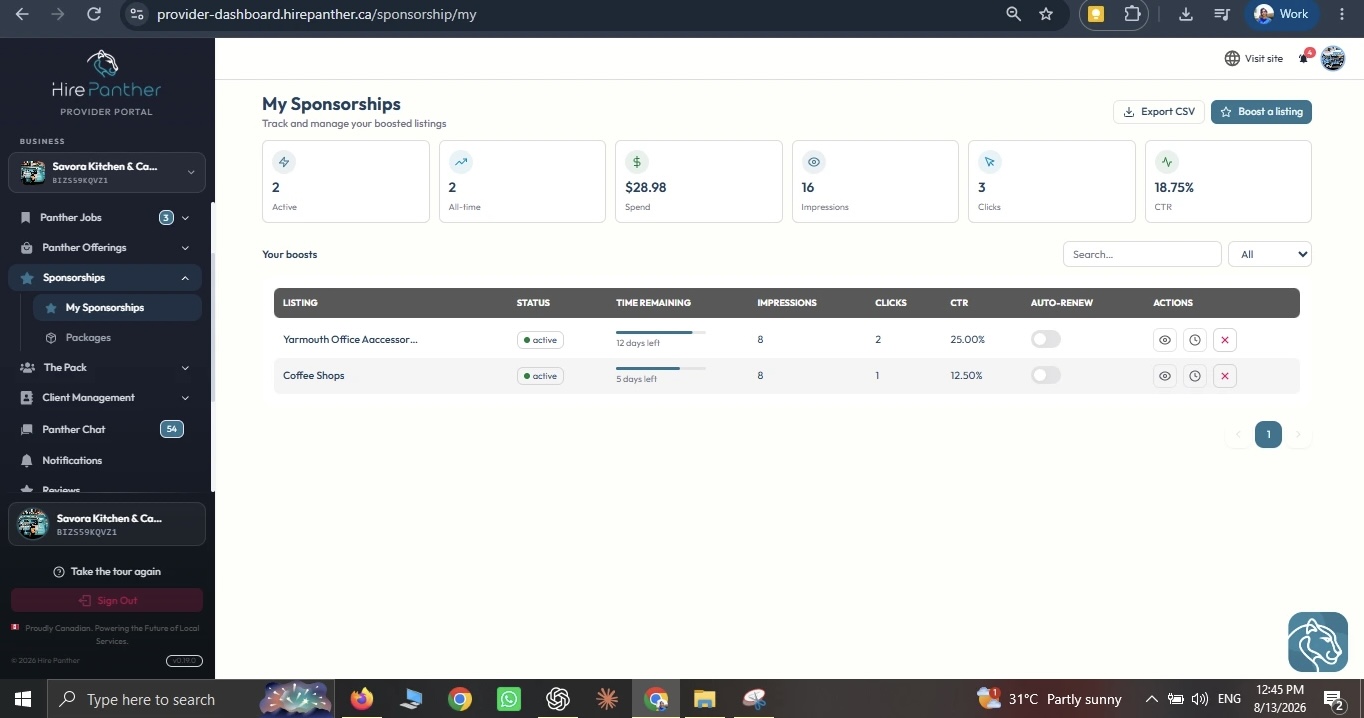
- Spend — how much the boost has cost you so far, including any boost credits used.
- Impressions — how many times your service appeared in search results.
- Clicks — how many times customers clicked on your listing.
- CTR (click-through rate) — the share of impressions that turned into clicks. A higher rate usually means your listing looks appealing.
- Remaining time — how much time is left on your boost.
A boost gets your service seen, but it’s your listing that earns the click. A clear title, good photos, and a fair price all help your CTR. See “Showing up in search and understanding analytics” for more on ranking and your analytics dashboard.
Worked example
Marcus is a landscaper in Hamilton. Every spring he gets a rush of requests for Spring clean-up — raking, garden beds, and pre-season tidy-ups — but a few weeks before the rush, bookings are still slow.
Two weeks out, he opens Service Boost, chooses Spring clean-up, and picks the Growth Boost. His membership plan includes boost credits, which are applied at checkout, so his out-of-pocket cost is a small balance. Over the next two weeks the dashboard shows impressions climbing, and a healthy CTR tells him his listing and price are competitive. When the spring rush fills his calendar, he turns off auto-renewal so the boost ends when the busy season is over.
Common issues
- I boosted a service but I’m not getting more bookings. A boost improves your placement, not your listing itself. Check your CTR on the dashboard, then review your title, photos, and price.
- My boost ended sooner than I expected. Check Remaining time on the boost dashboard. Each package runs for a set period, and if auto-renewal was on, a renewal may have already been charged.
- My boost credits aren’t showing up. Boost credits come with your membership plan. Check Plan & Billing to confirm your plan includes credits and that your billing is up to date.
- I don’t want the boost to renew. Turn Auto-renewal off from the boost dashboard any time before the current boost ends.
- I boosted the wrong service. Turn off auto-renewal so the boost doesn’t continue, then boost the right service the next time.
Related
- Creating services and setting pricing
- Showing up in search and understanding analytics
- Getting paid: payments and payouts
- Membership plans, subscriptions & add-ons
Was this helpful?
Thanks for your feedback!