Overview
Your notification and account settings decide how you hear about new work, how secure your account is, and how you stay in touch with customers. This guide walks you through setting notification preferences, updating your profile and security, using Messages for booking conversations, and reviewing connected apps and permissions.
Notification preferences
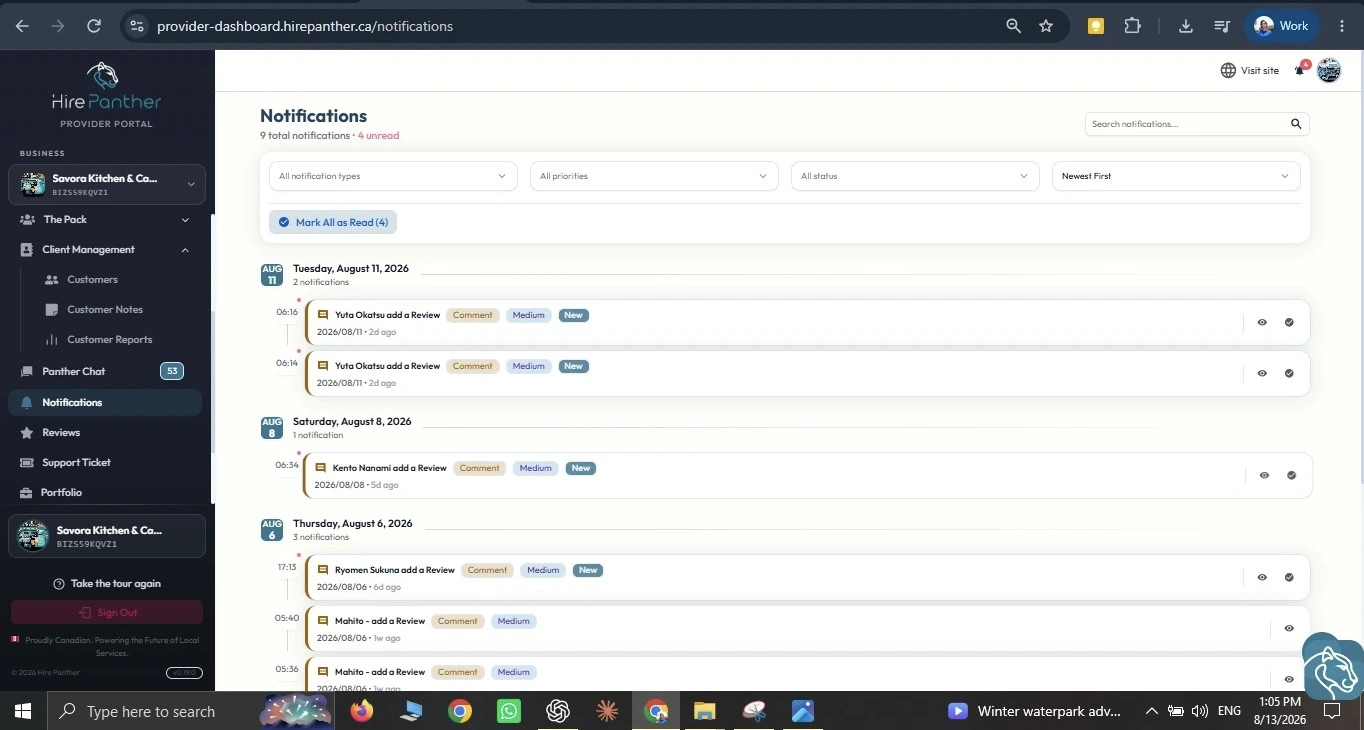
Notifications keep you in the loop on the things that matter. You choose what you’re notified about and how each type reaches you — in the portal, by email, or by text message.
1. Open your notification settings
- Sign in to the Provider Portal.
- Open Settings from the sidebar, then select Notifications.
2. Choose what to be notified about
- New booking requests — when a customer requests a booking.
- Messages — when a customer sends you a chat message.
- Account activity — sign-ins, password changes, and other security events.
Turn each one on or off to match how you like to work. If you’re away from the portal during the day, make sure new booking requests stay on.
3. Choose how you receive each notification
For each type, pick In-app, Email, SMS, or a combination. Text messages work best for time-sensitive updates like new booking requests, email suits a quick summary, and in-app covers everything while you’re signed in.
Account settings
1. Update your profile
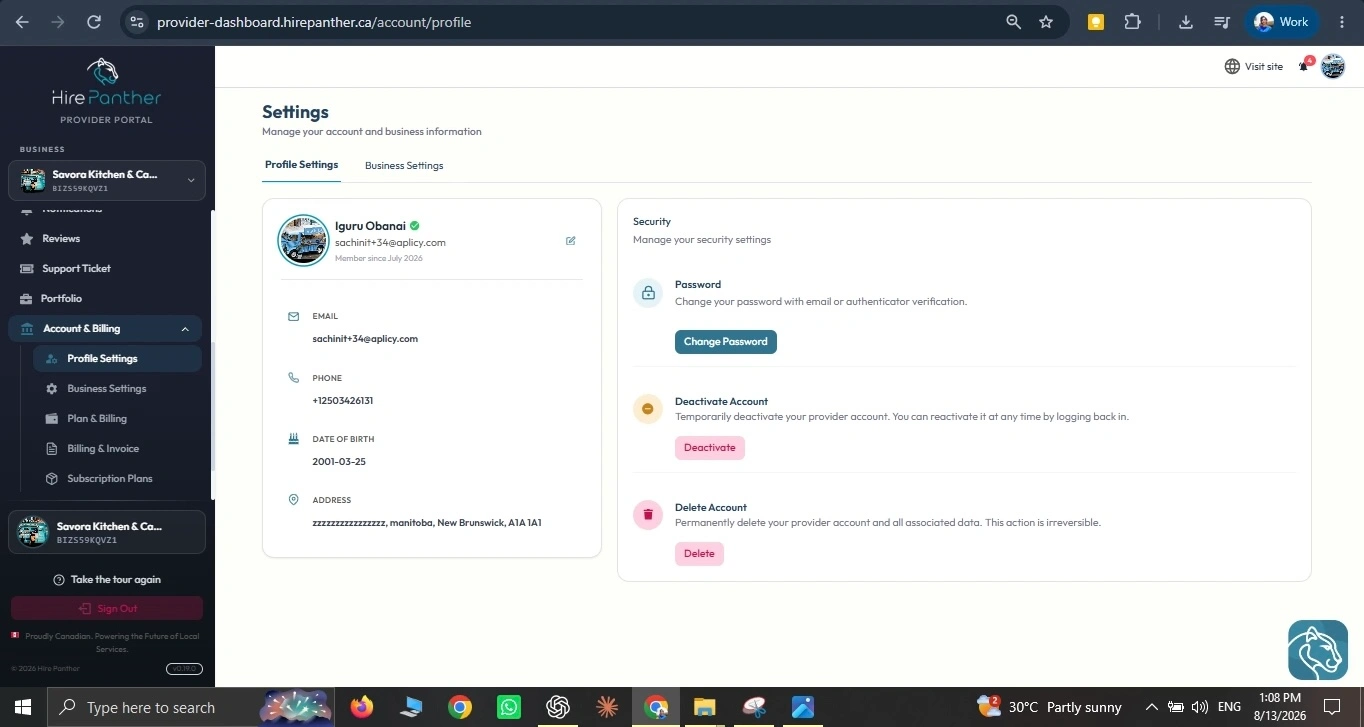
Open Settings, then Profile to update your display name, photo, phone number, and business details. Keeping your profile current helps customers recognize you and reach you when they need to.
2. Change your password
- Go to Settings, then Security.
- Select Change password.
- Enter your current password and a new, strong one, then confirm.
Choose a password you don’t use anywhere else. If you ever forget it, you can reset it from the sign-in screen.
3. Turn on two-factor authentication
- In Settings, then Security, select Two-factor authentication.
- Choose an authenticator app or SMS as your second factor.
- Follow the on-screen steps to pair your device, then confirm with a code.
Two-factor authentication adds a second check at sign-in, so your account stays protected even if your password is compromised. Save your backup codes somewhere safe.
Messaging with customers
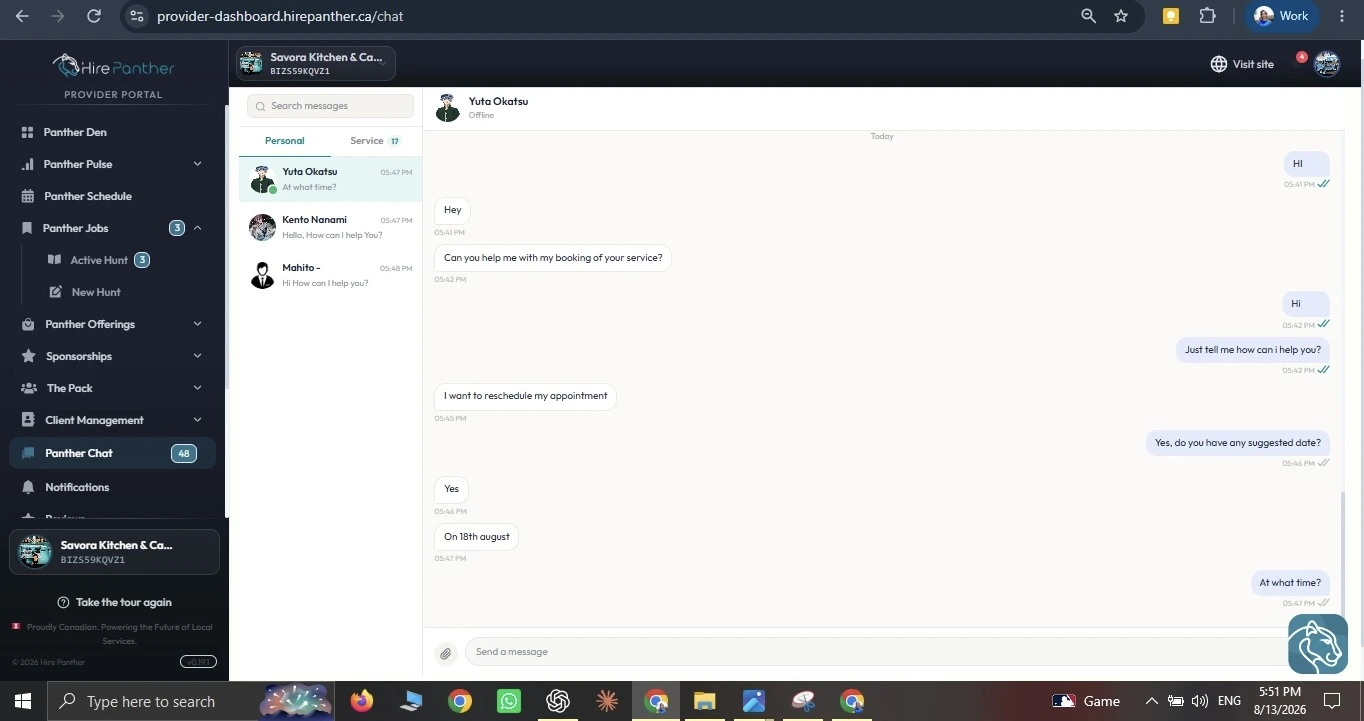
Messages is where you talk with customers about bookings. Conversations are linked to the booking they’re about, so you always have the context — the service, date, time, and customer details — right beside the chat.
- Open Panther Chat from the sidebar.
- Select a conversation to read the latest messages.
- Reply in the chat, and use the booking link to open the appointment details when you need them.
Connected apps and permissions
You can review which apps and services are connected to your Provider Portal account and what they can access. Open Settings, then Connected apps to see them. Revoke access for anything you no longer use, and only grant access to apps you trust.
Worked example
Priya runs a cleaning service in Mississauga and takes a lot of same-day cleaning bookings. She used to notice new requests too late and lose the work to a faster provider.
She opens Settings, then Notifications, and turns on SMS for New booking requests. She keeps email on for account activity, and leaves in-app notifications on for messages.
Now when a customer books a same-day cleaning, her phone buzzes the moment the request comes in. She accepts right away — before the slot fills — and the booking locks onto her calendar. Priya keeps her account secure too, with two-factor authentication turned on, so her business details stay protected while she’s on the move.
Common issues
- You’re not getting notification emails — Check your spam or junk folder, and confirm your email address in Settings, then Profile. If a request is time-sensitive, turn on SMS instead.
- SMS notifications aren’t arriving — Confirm your phone number is correct and that SMS is turned on for that notification type. Some carriers block short codes; contact your carrier if messages never arrive.
- You can’t sign in — Use Reset password from the sign-in screen. If you have two-factor authentication on, use your authenticator app or a backup code.
- A customer says their messages go unanswered — Make sure notifications for Messages are turned on, and check Messages regularly during working hours.
- An app has more access than you want — Open Settings, then Connected apps, and revoke its permissions.
Related
Was this helpful?
Thanks for your feedback!