Overview
This guide is for home and professional-services providers who hit a snag in the Provider Portal. You’ll find quick fixes for the most common problems, answers to frequent questions, and how to open a support ticket when you need a hand from the HirePanther team.
FAQ
Can I have more than one business?
Yes. From Account & Billing, use the business switcher to add or switch between businesses. Each business keeps its own business profile, services, bookings, staff, and payouts.
Do I pay to list a service?
No. Creating and publishing a service listing is free. You can choose a membership plan for extra tools, and you can pay for extra visibility with Service Boost, but listing a service itself doesn’t cost anything.
How do boost credits work?
Boost credits come with some membership plans. When you boost a listing, you pick a boost package — Basic Boost, Growth Boost, or Elite Boost — and your credits are applied at checkout to cover part or all of the cost.
How do I get paid?
After a customer pays for a completed booking, you receive a payout. Set up your payout details under Payments, and make sure your KYC verification is complete — verification gates payouts. Payouts are issued on the schedule shown in the Payments area.
How do I reach support?
Open a support ticket from the Support area in your workspace. Describe the problem, include any booking reference, and submit. You can track replies in the same ticket.
Open and track a support ticket
Sometimes a fix is beyond your control, and that’s when a support ticket helps. Everything stays in one thread you can track until it’s resolved.
1. Go to Support
Open the Support area from the sidebar of the Provider Portal.
2. Create a new ticket
Select New ticket, then choose the subject that matches your issue.
3. Describe the problem
Explain what happened and what you expected. If it’s about a specific booking, include the booking reference — it helps the team find the right details fast.
4. Attach screenshots
Screenshots of error messages make it easier to diagnose the issue.
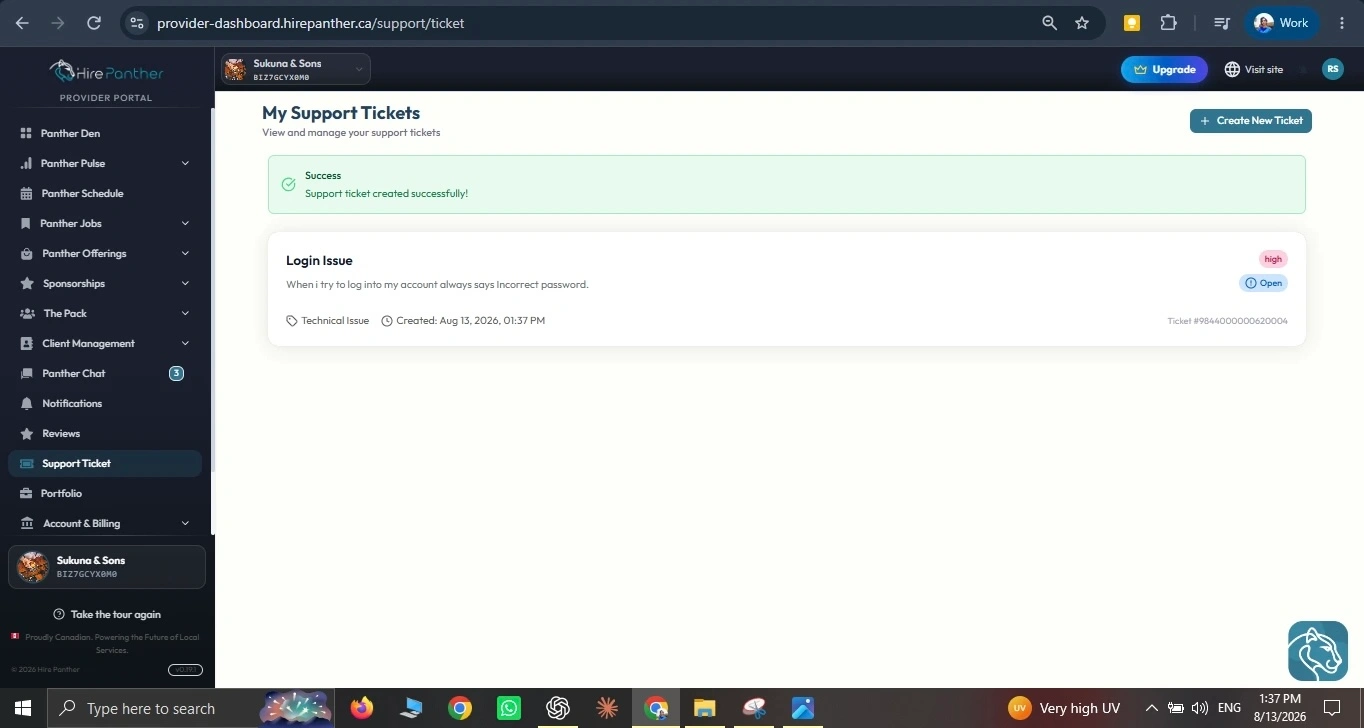
5. Submit and track
Submit the ticket, then check back in the Support area to read replies. You’ll be notified when there’s an update. Keep replies in the same ticket rather than starting a new one.
Worked example
Dan runs a plumbing business in Toronto. One Monday he opens the Provider Portal and realizes he forgot his password. On the login page he clicks Forgot password, enters his business email, and opens the reset link that arrives a minute later. He sets a new password and signs in, ready for his first booking of the day.
A week later, Dan notices a payout looks short. He checks his booking history and finds the reference for the job, then opens Support and selects New ticket. He picks the payments subject, describes the issue, and adds the booking reference before submitting. The support team replies in the ticket, and Dan tracks the fix until the payout is corrected.
Common issues
- You can’t log in or you forgot your password. Choose Forgot password on the login page and follow the reset link sent to your email. If the link doesn’t arrive, check your spam or junk folder. Still stuck? Open a support ticket.
- Verification is taking a while. KYC review usually takes a few business days. Confirm you submitted everything requested. If it’s been longer than expected, open a support ticket with your business name.
- A payout is delayed. Check that your payout details are correct and your KYC verification is complete — verification gates payouts. If the payout is past the date shown, open a support ticket and include the booking reference.
- Your calendar shows a double-booking. Open Calendar & Availability and review the two overlapping bookings. Reschedule or cancel one, then add a holiday or blocked date so the slot isn’t offered again.
- You can’t upload a logo or photo. Make sure the file is a common image type like JPG or PNG and under the size limit. Try a smaller file. If it still fails, open a support ticket with the file details.
Related
- Getting started with the Provider Portal
- Getting paid: payments and payouts
- Notifications and account settings
- Opening & tracking a support ticket
Was this helpful?
Thanks for your feedback!